How to Speed Up a Slow Computer in Minutes
Have you ever been in the middle of a high-stakes dinner service, trying to plate a delicate emulsion, only to realize your prep station is so cluttered with empty crates and discarded peelings that you can’t even move your knife? That’s exactly how it feels when you’re staring at a spinning loading icon instead of getting your work done. Most tech gurus will try to sell you on expensive, bloated software subscriptions or tell you that you need to buy a brand-new machine, but honestly, that’s just culinary fluff. Learning how to speed up your computer shouldn’t require a massive budget or a degree in computer science; it’s really just about clearing the clutter and refining your workflow so you can get back to what actually matters.
I’m not here to give you a recipe full of unnecessary ingredients that just slow you down. Instead, I’m going to share the same straight-shooting, no-nonsense approach I use when I’m helping a restaurant streamline its kitchen operations. We are going to dive into the practical, high-impact tweaks that actually move the needle, from managing your digital “mise en place” to cutting out the background processes that are hogging your resources. Let’s get your digital workspace back to a perfect simmer.
Table of Contents
- Optimize Windows Startup Programs for a Fresh Start
- Manage Background Processes to Clear Your Creative Space
- Prep Your Digital Mise en Place: 5 Ways to Keep Your Tech Running Smoothly
- Chef’s Notes: The Secret Sauce to a Faster Workflow
- Finding Your Digital Flow
- Bringing It All Together
- Frequently Asked Questions
Optimize Windows Startup Programs for a Fresh Start
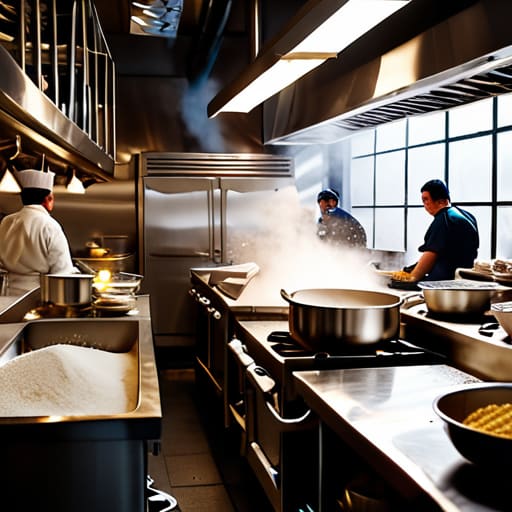
Think of your computer’s startup process like a kitchen prepping for the dinner rush. If every single cook, sous chef, and dishwasher tries to crowd into the prep station the second you walk through the door, everything becomes a chaotic mess. That’s exactly what happens when too many apps try to launch the moment you hit the power button. To fix this, you need to optimize windows startup programs so only the essentials are working. Open your Task Manager, click on the Startup tab, and take a hard look at that list. If you see apps like Spotify, Steam, or random cloud services that don’t need to be running immediately, right-click and hit disable.
It’s all about streamlining your workflow so your system can breathe. When you reduce that initial clutter, your machine reaches a usable state much faster, leaving more room for the heavy lifting. By learning how to manage background processes effectively, you aren’t just saving time during boot-up; you’re reclaiming precious memory that your actual work needs to thrive. It’s the digital equivalent of clearing your cutting board before you start chopping—much more efficient, right?
Manage Background Processes to Clear Your Creative Space
Think of your computer like a busy commercial kitchen during a Friday night rush. If you have five different prep cooks all trying to use the same single burner at once, nothing is going to get out to the dining room on time. In the digital world, those “prep cooks” are your background applications. Even if you aren’t actively using them, programs like cloud storage syncs, update checkers, or chat apps are constantly nibbling away at your system’s resources. To reclaim your focus, you really need to manage background processes to ensure your CPU isn’t spread too thin.
I always tell my clients that a cluttered workspace leads to a cluttered mind, and the same applies to your task manager. When you see a dozen processes running in the shadows, it’s essentially like having unwashed pots and pans taking up space on your stove. By identifying and closing the non-essential tasks that are hogging your memory, you create a streamlined digital environment. This allows your primary tools—whether you’re editing high-res food photography or managing a restaurant’s inventory software—to run with the precision and speed they deserve.
Prep Your Digital Mise en Place: 5 Ways to Keep Your Tech Running Smoothly
- Clear out the digital scraps by running a disk cleanup. Just like you wouldn’t leave old vegetable peels on your cutting board while prepping a new dish, you shouldn’t let temporary files and old cache clutter up your hard drive. It’s all about keeping your workspace clean so you can move faster.
- Check your storage capacity before it hits a breaking point. Think of your hard drive like a pantry; if you cram too many heavy bags of flour and oversized stockpots in there, you’ll struggle to find anything, and everything becomes a mess. Delete those massive video files you haven’t touched in years to give your system some breathing room.
- Update your software and drivers regularly. In a professional kitchen, you wouldn’t use a dull knife or a broken whisk, right? Keeping your OS and drivers updated is like sharpening your tools before service—it ensures everything cuts through the tasks you give it with precision and speed.
- Watch out for “resource hogs” like heavy browser extensions. Some of these add-ons are like that one overly demanding sous chef who takes up all the stove burners but doesn’t actually help the service. If an extension isn’t essential to your workflow, prune it back so your main programs can shine.
- Consider a hardware upgrade if you’re hitting a wall. Sometimes, no matter how much you clean, you simply need a better stove. If your computer is feeling sluggish despite your best efforts, upgrading to an SSD is like moving from a tiny camping stove to a high-end range—it’s a total game-changer for your productivity.
Chef’s Notes: The Secret Sauce to a Faster Workflow
Treat your startup programs like a cluttered prep station; if you don’t clear out the unnecessary tools before the rush begins, you’ll spend your whole shift tripping over them.
Keep a close eye on your background processes, because those “hidden” apps are like uninvited guests in your kitchen—they eat up your resources and leave you with no room to actually cook.
Think of digital optimization as mise en place; by organizing your system and clearing the clutter now, you create the mental and technical space needed to let your creativity truly simmer.
Finding Your Digital Flow
“Think of your computer like a high-pressure kitchen during a Saturday night rush; if your workspace is cluttered with unnecessary tasks and background noise, you’ll never find your flow. To cook something truly great, you need to clear the prep table so you can focus on the masterpiece in front of you.”
Amelia Johnson
Bringing It All Together
Just like prepping a station before a high-stakes service, keeping your digital workspace tidy is the secret to staying in the flow. We’ve gone through the heavy lifting today—trimming down those pesky startup programs that bog you down the moment you boot up, and clearing out those background processes that act like uninvited sous chefs cluttering your prep area. By managing these elements, you aren’t just making your computer faster; you are reclaiming your mental bandwidth. Think of it as cleaning your knives and organizing your spice rack; once the clutter is gone, you can finally focus on the actual art of what you do, rather than fighting with your tools.
At the end of the day, whether you are perfecting a delicate emulsion or designing a brand-new menu, you deserve tools that work as hard as you do. Don’t let a lagging processor be the thing that kills your creative spark or keeps you from hitting those big professional milestones. Treat your technology with the same care and intentionality you bring to your favorite recipe, and I promise you’ll see the results. Now, go out there, embrace your passion, and let your creativity run wild and free without the digital drag holding you back!
Frequently Asked Questions
Is it safe to disable all those background processes, or am I going to accidentally "turn off the stove" and crash my system?
That is such a valid concern! Think of it like a professional kitchen: you wouldn’t want to turn off the pilot lights or the walk-in fridge mid-service, right? You’ll definitely crash your system if you go overboard. Stick to disabling things you recognize—like Spotify or Steam—but leave the “system” processes alone. If you aren’t sure what a process does, don’t touch it. Let’s keep the heat on the essentials and only clear the clutter!
I’ve cleared out my startup programs, but my computer still feels sluggish—could my hardware be the bottleneck, like an outdated oven that just can't hold heat?
Spot on! You’ve cleaned the counters and organized the pantry, but if your oven’s heating element is shot, that soufflé is still going to fall. If your software is lean but the machine is dragging, you’re likely hitting a hardware wall. Think about your RAM like prep space—if it’s too small, you’re constantly shuffling bowls just to chop one onion. It might be time to upgrade your “appliances” to keep up with your culinary ambition.
How often should I be doing this digital "kitchen clean-up" to make sure my workflow stays smooth and efficient?
Think of it like a post-service breakdown in a professional kitchen. You wouldn’t wait until the end of the month to scrub your stations, right? I recommend a quick “sweep” of your startup programs and background tasks once a week. It keeps the clutter from piling up. However, if you notice your system starting to feel sluggish—like a heavy sauce breaking—that’s your sign to dive in immediately and clear the workspace!


Amelia Johnson
I believe that food is not just sustenance but an expression of culture and creativity. Let’s explore how we can turn our culinary passions into rewarding careers that feed both our souls and our wallets.